User Login
To login, click the User Login button in the upper-right corner of the application. Doing so will open up the User Login Dialog.
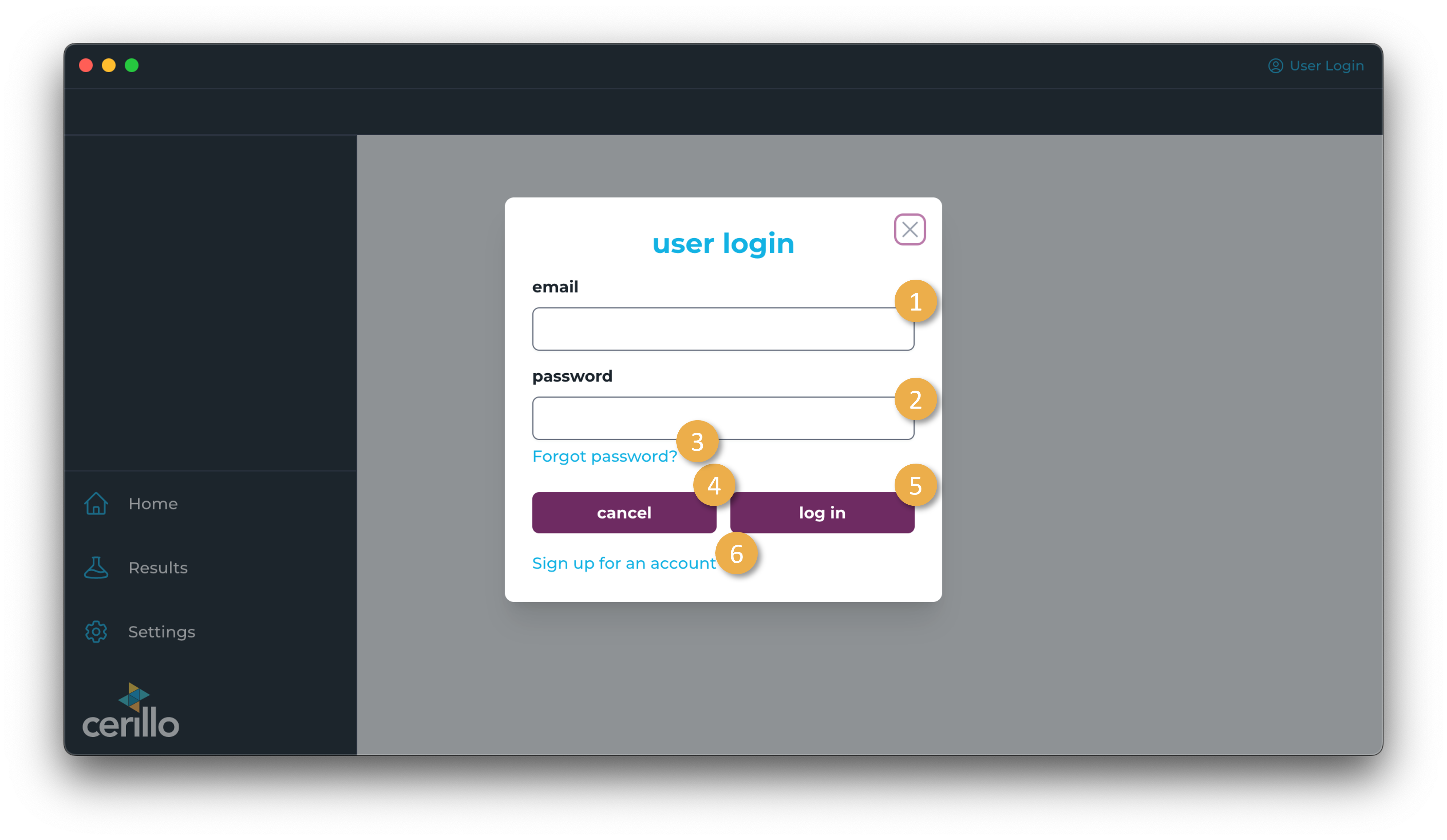
Number |
Element |
Description |
|---|---|---|
1 |
Email Input |
Enter user email here |
2 |
Forgot Password Link |
Send out password reset link to user email |
3 |
Password Input |
Enter user password here |
4 |
Password visibility toggle |
Click to view plaintext password. Click again to conceal password characters. |
5 |
Cancel |
Cancel log in attempt |
6 |
Log in |
Attempt Login. A notification will appear indicating whether the login was successful or if it failed |
7 |
Sign up for an account |
Create a new account with an email and password |
User Info
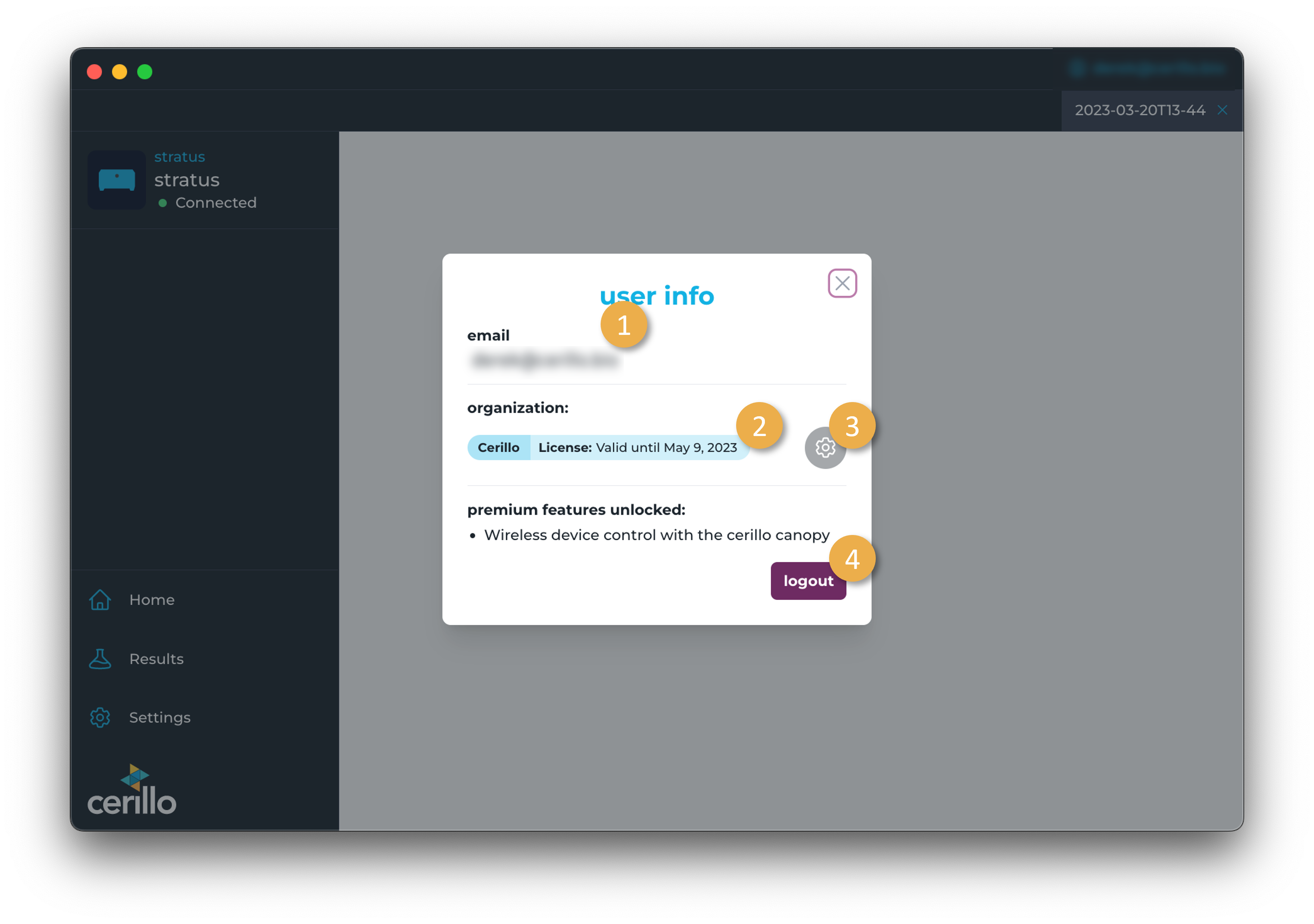
Once a user is logged in, clicking the user email in the upper-right corner of the application will open the User Info Dialog. The user will stay logged-in during subsequent launches of the application until they explicitly logout.
Number |
Element |
Description |
|---|---|---|
1 |
User Email |
Email of the user currently logged in. |
2 |
Organization |
Name of the organization the user belongs to and the organization’s license expiration date. Accept and Reject buttons will be available here if you have a pending invitation to join this organization |
3 |
Organization Settings |
(Admin-only) Click this gear to navigate to Organization Settings. From this page you can manage the members of your organization as well as redeem new licenses. |
4 |
License info |
Information about the active license for the organization. |
4 |
Activate new license |
Activate a new license for this organization. Only necessary in certain circumstances like when your organization has purchased a new license to extend access to premium features. |
4 |
Logout |
Log out the currently logged-in user. |
Tip
If a user recently purchased a license for their organization and the license is not showing up in the User Info Dialog, that user can log out and log back in to refresh the license to the newly-purchased one.