Queueing Experiments
Queueing experiments is a premium feature unlocked with a premium or unlimited license.
In many situations, you may not be able to easily connect your plate reader to a computer in the environment it needs to be in for an experiment. For instance, you may have to run a kinetic experiment in an anaerobic chamber or incubator. If you want to assign a plate layout to an experiment started with a button press, there are two ways you can accomplish this
Add the plate layout to the experiment after the experiment is over and you’ve connected your Cerillo reader back to a computer running Labrador. This method does not store the plate layout on the device, so the layout only persists on that computer. The layout will not travel with the Cerillo reader and would have to be re-added in labrador if accessed via a different computer. See plate remapping for details on plate type changes post-experiment.
Queue the experiment setup on the reader while its outside of whatever box it will be placed in. The device will store the experiment setup and then wait for a button press before actually starting the experiment. This method will store the plate type and plate layout on the device so it persists across computers accessing the experiment on that device. It also allows you to set the duration of the experiment which may be helpful in some situations.
In order to queue an experiment do the following:
Update the firmware on your device to the latest. Your device must be running firmware v6.12.0 or higher for this feature to be enabled
Access device settings and turn on Queue experiments in Labrador
Save device settings
Click New experiment in the device page
Set up the experiment, plate type and plate layout to be used for your experiment.
Click Queue.
If running a kinetic experiment, acknowledge the dialog and click Queue now
If running an endpoint experiment, choose to Calibrate or Queue now. If you choose Queue now, you can calibrate with a button press even when the device is in a queued state.
The device is now in a queued state indicated by the status light turning purple. It is ready to begin your experiment once you press the start button on the device or start the experiment in Labrador.
Devices with a display will show Start, Calibrate and Cancel options.
Move your device to the experiment environment whether it be an anaerobic chamber or incubator.
Power the device on. It should still be in a queued state. Allow the device to equilibrate according to its user manual - typically 1-2 hours.
Calibrate the device using the Calibrate menu option on a device with a display, or by holding the right button until the status LED flashes on devices with two buttons and no display.
Start the experiment:
For Rayo S600 and Stratus devices, press the start/left button.
For devices with a display such as Rayo M and Rayo E, click enter while the cursor is on the Start menu option.
Re-running Queued Experiments
In Cerillo device firmware versions greater than or equal to 7.6.0, queued experiments persist in the device’s memory after they have completed. This behavior allows multiple experiments to be run sequentially with the same settings. This feature makes it easier to measure a series of plates with the same experiment setup in settings where queueing is also required. For devices that support re-runnable queued experiments, the banner that appears when the device is in a queued state will appear as such:
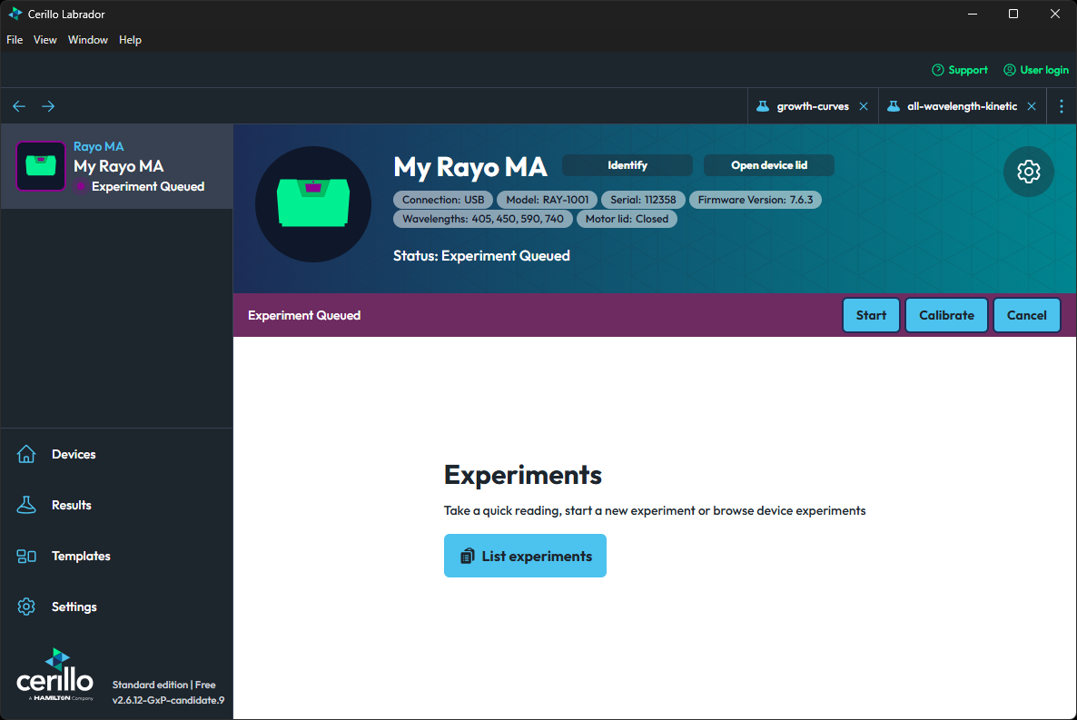
Clicking Start will start the experiment and open the experiment in Labrador. The experiment can also be started with the on-device menu as described above. Calibrate will calibrate the device using the same settings used for the experiment including wavelengths selected. Cancel will clear the device out of the queued state. The experiment user association occurs when the experiment is initially queued, so all subsequent re-run experiments will also be attributed to that user.
To re-run the same queued experiment multiple times on firmware ≥ 7.6.0 do the following:
Follow steps 1-10 in the queued experiment instructions
After the initial experiment is completed, the device will return to a queued state
Swap out the plate to the next plate to be measured
Start the experiment:
For Rayo S600 and Stratus devices, press the start/left button.
For devices with a display such as Rayo M and Rayo E, click enter while the cursor is on the Start menu option.
Note
Re-running experiments is only available on devices running firmware version 7.6.0 or higher.