Quality Control Addon (QC)
Quality features in Labrador consist of a suite of diagnostic tests to quality control your Rayo device upon installation and on subsequent operation. To access the suite, click the quality control button in the device header. This opens the Quality Control page and puts the device into Quality Control mode, denoted by the Quality Control status label and a metal-pattern header.
The tests described below cover device-level diagnostics. Cerillo also maintains a more extensive, written set of Installation Qualification & Operation Qualification (IQ/OQ) protocols beyond this in-app test suite, which you can use as a starting point for your own validation documentation (see §11.10(a) for how this fits into 21 CFR Part 11 validation). If you don’t already have a copy, contact support@cerillo.bio to request one.
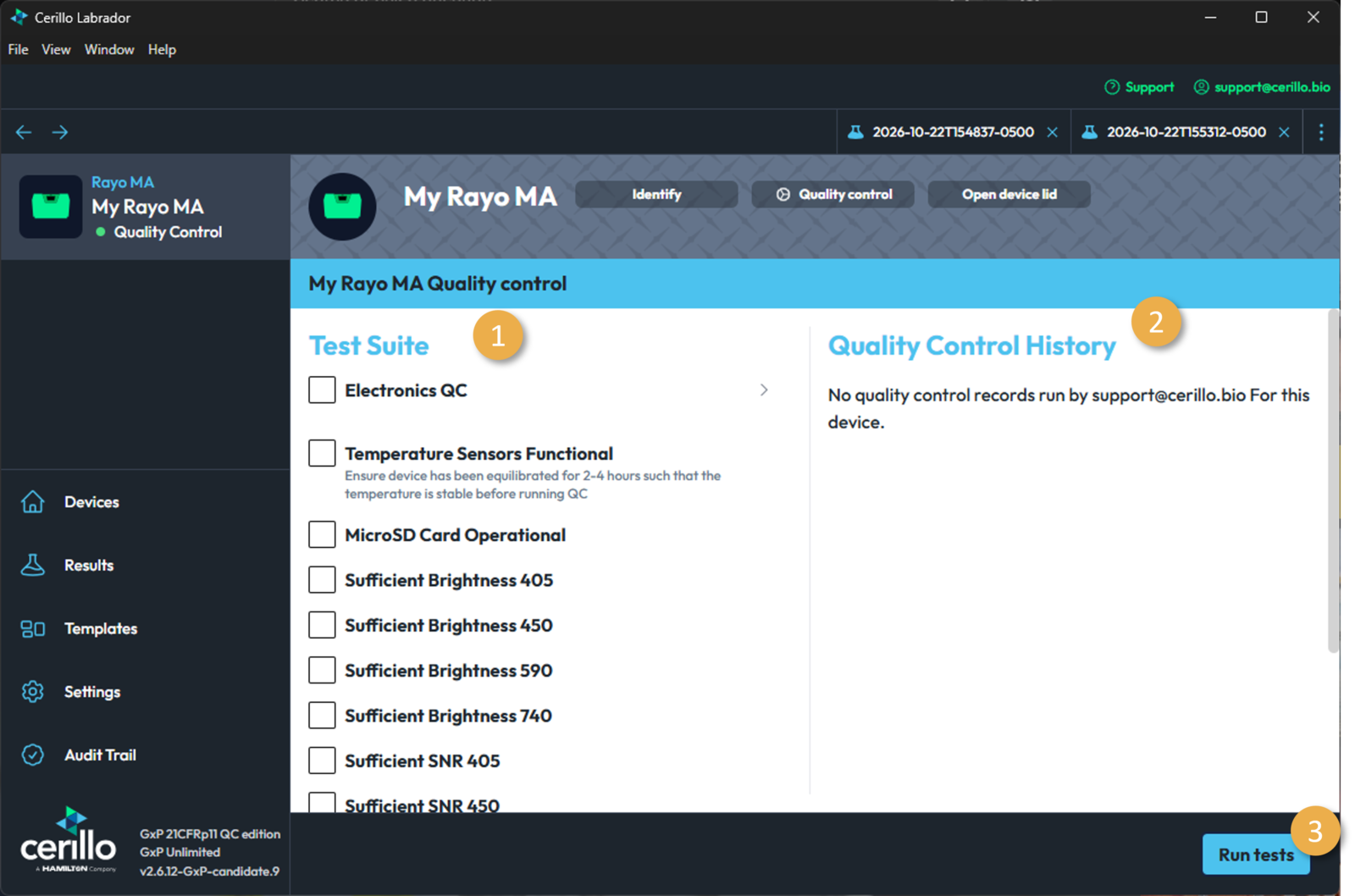
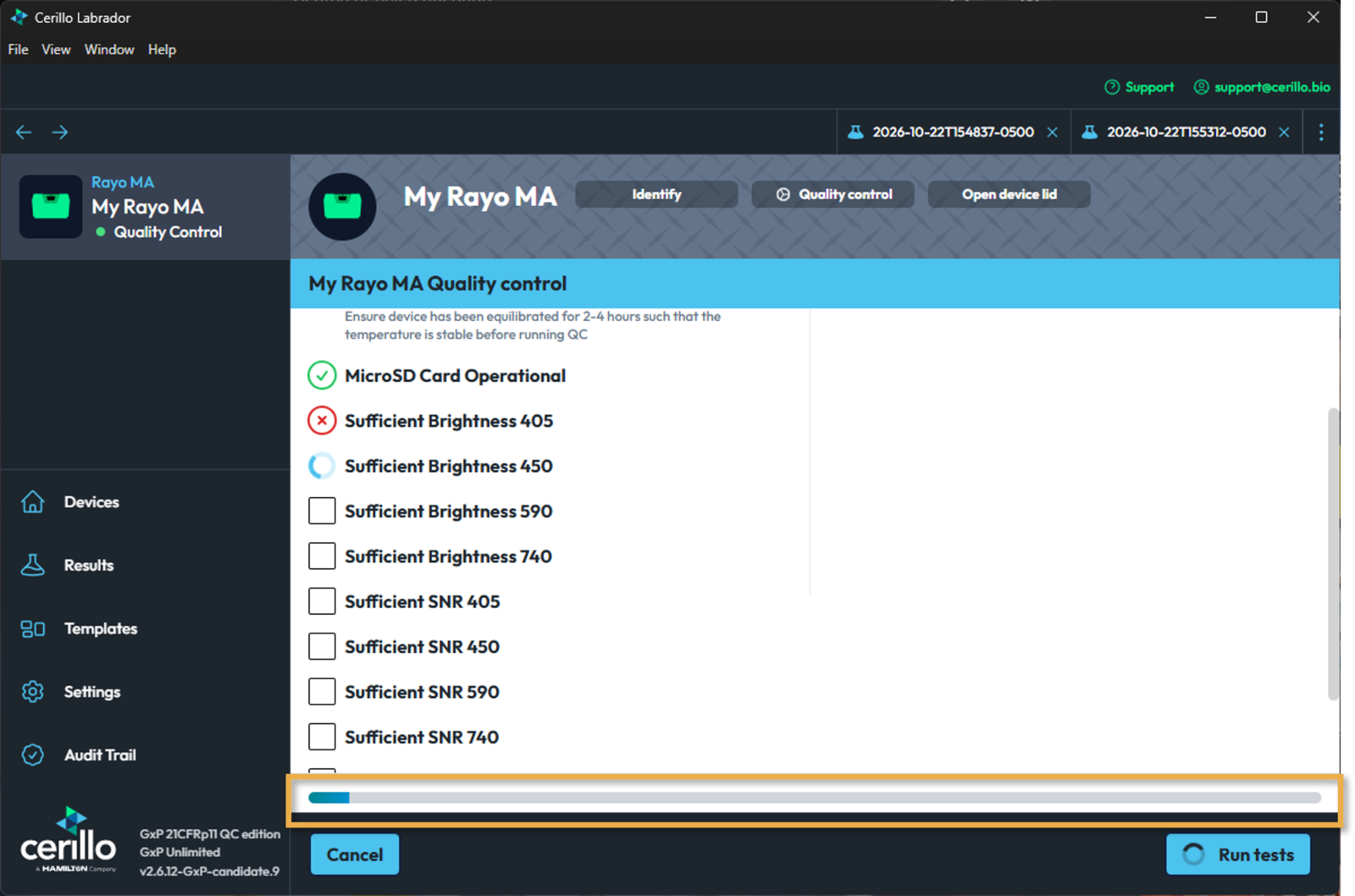
The Quality Control page has two columns: Test Suite on the left, listing all tests with live status indicators, and Quality Control History on the right, showing previous runs. Click Run tests at the bottom of the page to begin execution. A progress bar tracks overall completion.
Number |
Element |
Description |
|---|---|---|
1 |
Test Suite |
Lists all tests for the connected device with a status icon for each: a spinner while running, an empty checkbox while waiting, a green check for pass, and a red X for critical fail. The Electronics QC test displays an overall pass or fail icon. Click it to expand the section and view the status of each individual board component. |
2 |
Quality Control History |
Expandable list of previous QC runs for this device and logged-in user. Click the + button on a record to view its summary. Click the download icon to export it. |
3 |
Run tests |
Executes the full test suite in sequence. Requires the user to be logged in. In 21CFR mode, requires reviewer credentials before running. |
A progress bar will appear while tests are running to show overall completion.
Resuming an interrupted QC run
QC test progress is saved automatically as tests complete. If a run is interrupted before it finishes (for example, the app is closed, crashes, or the computer goes to sleep), a Resume QC Test dialog appears the next time you open the Quality Control page for that device. The dialog shows when the previous run was saved.
Click Resume to continue from where the previous run left off. Tests that already completed keep their results.
Click Start Fresh to discard the saved progress and start a new run from the beginning.
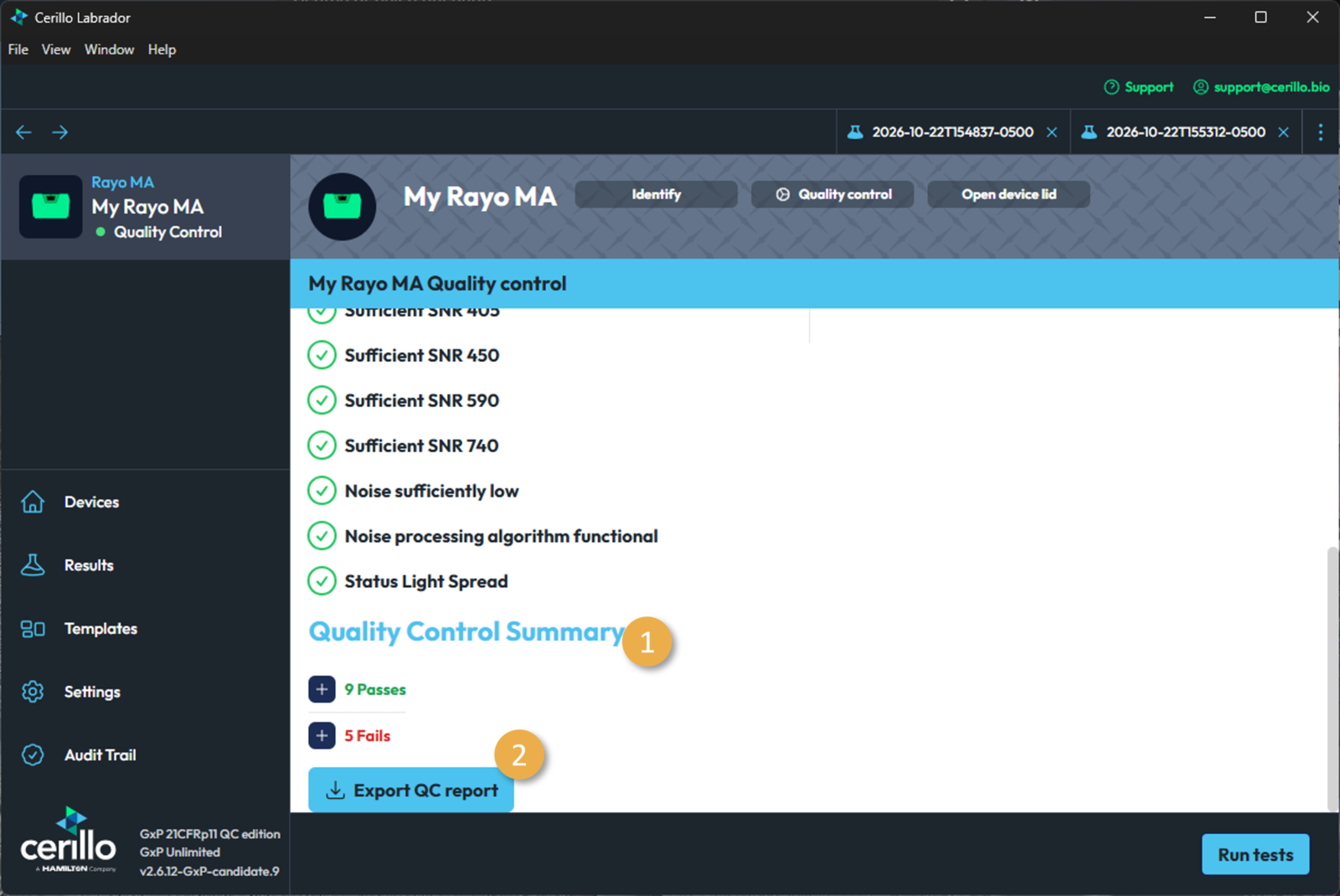
After completion, a summary will appear with tests passed and failed. This summary is the same format that appears in the Quality Control History for past test executions. An export button will also appear to export the test in .csv format.
Number |
Element |
Description |
|---|---|---|
1 |
Quality Control Summary |
Appears after tests complete, summarizing pass/fail counts. |
2 |
Export QC report |
Appears after tests complete. Exports a detailed QC report to a file. |
Rayo Multiwavelength QC Test Details
Component |
Description |
|---|---|
TWI 0 / TWI 1 |
Verifies the two TWI (I²C) bus lines are operational. |
SPI MUX |
Verifies the SPI multiplexer select lines are not stuck. |
SPI Aux / SPI Detector / SPI Motor / SPI SD |
Verifies each SPI bus line (SCK, COPI, CIPO) is not stuck high or low. |
Zigbee |
Verifies the wireless communication module responds correctly. |
Micro SD Card |
Verifies the microSD card is accessible over SPI. |
Motor Controller / Motor Driver |
Verifies the drawer motor controller and driver respond correctly. |
RTC |
Verifies the real-time clock is present and communicating. |
LED Voltage DAC / LED Current DAC |
Verifies the LED drive DACs are present and responding. |
Temperature Sensor 1–4 |
Verifies all four temperature sensors are present and communicating. |
Base Board Light Sensor / Edge Board Light Sensor |
Verifies both ambient light sensors are present and communicating. |
ADC |
Verifies the analog-to-digital converter is present and responding. |
Detector GPIO / Aux Output GPIO / Aux Input GPIO |
Verifies the GPIO expanders are present and responding. |
Screen |
Verifies the display controller is present and communicating. |
Status LED Driver |
Verifies the status LED driver IC is present and communicating. |
LED Info |
Verifies the LED information register is readable. |
Below the Electronics QC section, the automated optical tests run once per wavelength supported by the device (e.g. 405 nm, 450 nm, 590 nm, 740 nm).
Test |
Description |
|---|---|
Temperature Sensors Functional |
Reads all four temperature sensors and verifies the standard deviation across them is within the acceptable range. |
MicroSD Card Operational |
Confirms the microSD card is accessible and operational. |
Sufficient Brightness [per wavelength] |
Performs a plate read at each supported wavelength and verifies all wells meet the minimum signal threshold for that wavelength. |
Sufficient SNR [per wavelength] |
Performs 10 consecutive plate reads at each supported wavelength and verifies the signal-to-noise ratio per well meets the minimum threshold. |
Noise sufficiently low |
Reads dark current across all wells and verifies values are below the maximum noise floor. |
Noise processing algorithm functional |
Performs 10 dark current reads and verifies each completes within the maximum allowed time. |
Status Light Spread |
Verifies that the status LED does not bleed into plate measurements when illuminated at full brightness. |