21CFR Part 11 Compliance Addon
This user manual covers the Labrador-specific features that complement the greater Cerillo 21CFR Part 11 package which includes documentation surrounding how to implement 21CFR part 11 compliance using these features. Cerillo, Inc. is not responsible for implementing 21CFR Part 11 compliance within your company or lab, but these features are provided to aid your implementation process. Part 11 is organized into three subparts. Subpart A (General Provisions, §11.1 - §11.3) defines the regulation’s scope, when electronic records/signatures may be used in place of paper, and its terms; determining whether Part 11 applies to your records at all is a quality-system decision made by your organization rather than a Labrador feature, so this document does not cover Subpart A further. The remaining two subparts - Subpart B (Electronic Records, §11.10 - §11.70) and Subpart C (Electronic Signatures, §11.100 - §11.300) - are where Cerillo’s software provides concrete controls, and this document follows that structure below. In each subpart’s table, we break down which sections your company/lab is solely responsible for and which ones Cerillo is responsible for. If Cerillo is responsible for a section, we list how this section is handled by Cerillo products and software.
Subpart B: Electronic Records (§11.10 - §11.70)
Subpart B covers the controls required for electronic records themselves: closed systems (§11.10), open systems (§11.30), signature manifestation (§11.50), and signature/record linkage (§11.70).
Section |
Subject |
Laboratory / Company |
Cerillo |
Handled By |
|---|---|---|---|---|
11.10 (a) |
Validation |
✓ |
Policies of the company or laboratory operating Cerillo Labrador and connected Cerillo devices |
|
11.10 (b) |
Readability |
✓ |
The data exported by 21CFR Labrador is both human readable and machine parse-able when applicable. See Procedure C3, “View experimental data on a device” for more details. |
|
11.10 (c) |
Archived |
✓ |
✓ |
All electronic records stored by Labrador are kept in a SQLite database on the file system. Exports of Labrador are all files and remain on the file system until the user transfers them to an external electronic archive. |
11.10 (d) |
System security |
✓ |
✓ |
Control of Labrador and Cerillo devices only by authorized users. See Procedure A2, “Log in” for details on user authentication and procedures A7, A8, and A9 for details on adding users, removing users, and changing roles, respectively. When 21CFR firmware is loaded on a Cerillo device, starting experiments via button press is disabled except for queued experiments or while the device has an active, credentialed unlock session. |
11.10 (e) |
Audit trail |
✓ |
✓ |
Labrador tracks user actions in an application log which does not expire, viewable and filterable through the Audit Trail page, which also offers a Device Log Comparison view to cross-reference device-generated log entries against corresponding audit trail actions. The application log can alternatively be viewed as a raw file via the Help menu’s View Log File option. The creation of backups is under the responsibility and control of the company or laboratory. |
11.10 (f) |
Sequencing |
✓ |
✓ |
Labrador provides guidance and checks for setting up and exporting an experiment. Any user approvals required at certain steps are handled by the laboratory/company. Analysis of data by Labrador is always done in the same sequential order based on the user-defined settings. |
11.10 (g) |
Authority |
✓ |
Control of access to the system is by individual authentication. User cannot modify raw data collected by device or the protocol used to collect raw data. All analysis and data processing of raw data can only be done by authorized users. |
|
11.10 (h) |
Location checks |
✓ |
✓ |
Labrador checks the validity and source of raw data produced by Cerillo devices, and the Device Log Comparison view lets you directly compare a device’s raw activity log against the corresponding audit trail entries to verify recorded data matches what the device actually reported. If Labrador is used for processing raw data to analyze or visualize experiments, the user who set those parameters will be logged in the exported files. Processing of data external to a Cerillo device or Cerillo Software is the responsibility of the company or laboratory. Labrador’s import experiment tools are disabled for the GxP edition to make it a closed system. Verifying the source of imported plate layout files into Labrador is the responsibility of the company or laboratory. |
11.10 (i) |
Education |
✓ |
✓ |
Manuals and documentation are provided by Cerillo, and onboarding training is available. The establishment and maintenance of ongoing appropriate training requirements is the responsibility of the company or laboratory. If your organization would benefit from in-app tutorials, please let us know that you would like that feature by contacting us at support@cerillo.bio and your feedback will be taken into consideration. |
11.10 (j) |
Written policies |
✓ |
Establishing and maintaining procedures to comply with this regulation is the responsibility of the company or laboratory |
|
11.10 (k) |
System documentation |
✓ |
✓ |
Labrador and associated Cerillo devices’ documentation cannot be changed by the user. The user manual within the Labrador application cannot be tampered with. The distribution of documentation to the users and version control of the documentation is the responsibility of the company or laboratory |
11.30 |
Controls for open systems |
✓ |
Labrador is a closed system - control is maintained by the organization operating it (see §11.10(d)) - so §11.30’s additional controls for open systems do not apply as shipped. If your organization transmits Labrador records over a network it does not control, determining whether that constitutes an open system and implementing the required additional controls is your responsibility. |
|
11.50 |
Signature manifestation |
✓ |
Every signature-gated action - starting an experiment, editing a plate layout, reviewing (comment or request changes), and approving for export - requires the signer to type their printed name and shows them the exact signature meaning (authorship, responsibility, review, or approval) they are attesting to. Labrador records the signer’s printed name, identity, the date/time of the action, and its meaning, and includes them in the exported PDF’s dedicated Electronic Signatures table alongside the full audit history. |
|
11.70 |
Signature/record linkage |
✓ |
Every signer’s printed name, identity, signature date/time, and signature meaning are rendered directly into the exported PDF rather than stored separately. Every 21CFR export |
Implementing §11.10 Requirements
The table above summarizes who is responsible for each §11.10 control and how Cerillo’s software supports it. This section expands each item into concrete steps your organization should carry out to close the gap between “the software supports this” and “this is a validated, controlled part of our quality system.” Where Cerillo provides a mechanism, this section outlines numbered steps your organization must still do for full §11.10 compliance.
§11.10(a) - Validation
Labrador and connected Cerillo devices must be validated to ensure accuracy, reliability, and consistent intended performance, including the ability to discern invalid or altered records.
Write a computer system validation (CSV) plan describing your intended use of Labrador and your Rayo device(s), including which experiment types, plate formats, and analyses are in scope.
If licensed, run the device-level Quality Control (QC) test suites described in the QC Addon documentation for each device, and retain the exported
.csvQC reports as objective evidence.Cerillo also maintains an extended set of written IQ/OQ protocols beyond the in-app test suite in step 2, which you can use as a starting point for your validation documentation. If you don’t already have a copy, contact support@cerillo.bio to request one.
Write and execute a Performance Qualification (PQ) protocol specific to your assay(s): run representative experiments and demonstrate the results match expected values within your acceptance criteria.
Record the exact Labrador application version and each device’s firmware version used during validation, and re-validate (at minimum, perform a documented impact assessment) before adopting a new Labrador or firmware version.
A GxP Labrador license is locked to the major/minor version current at redemption, with bug-fix patch updates for that version applying automatically - Labrador will not move itself to a newer major/minor version on its own. Adopting one instead requires an Administrator to explicitly opt in from within Labrador (see Checking for Application Updates), a credentialed action requiring the
update_app_versionpermission (see 21CFR Part 11 Roles) that is itself recorded in the Audit Trail. Treat that opt-in as the trigger for the re-validation/impact-assessment step above, rather than something that could happen unreviewed.Define, as part of your qualification protocol, what signature/integrity status (see Integrity / Signature Validation) is acceptable for a record to be considered valid.
Retain validation protocols, evidence, deviations, and approvals in your document control system per your written procedures (see §11.10(j)).
§11.10(b) - Readability
Cerillo is responsible for this control: exported records are both human-readable (PDF) and machine-parseable (.csv, .xlsx, .plate) where applicable.
Confirm your organization retains software (a PDF viewer, spreadsheet application) capable of opening these formats for your entire record retention period, including after future OS upgrades.
Reference the human-readable PDF export as your record of record in any SOP describing inspection or audit readiness.
§11.10(c) - Archival
Labrador stores records in a SQLite database on the local file system; exports are files that remain there until moved to an external archive.
Identify a secure, access-controlled storage location (network share, LIMS, document management system, etc.) for archived exports and, if you archive it directly, the underlying Labrador SQLite database.
Establish a backup schedule and retention period that satisfies the predicate rule(s) that apply to your records (e.g. 21 CFR 211, 820).
Periodically test restoring/retrieving a record from your archive to confirm it remains accurate, complete, and readily retrievable throughout the retention period.
Document the backup/archival procedure as an SOP, including responsible roles, frequency, and verification steps.
Before retiring or replacing a device, archive or securely wipe its microSD card contents per your policy.
§11.10(d) - System security
Labrador restricts control of itself and connected devices to authenticated, authorized users; 21CFR firmware disables starting an experiment with only a button press unless the device has an active, credentialed unlock session.
Issue every operator their own individual Labrador account (Procedure A7); never share login credentials between users, since shared logins break the traceability required by §11.10(g).
Write a password policy for your organization - Labrador enforces a minimum password length of 8 characters and, for 21CFR-licensed organizations, automatic expiration (see §11.300(b)), but does not enforce additional complexity rules - and communicate the requirement to users during account creation (Procedure A1).
Labrador automatically logs the current user out whenever the operating system suspends (e.g. a laptop’s lid closing) while 21CFR mode is active, clearing the cached session so a fresh login - and password-expiration check - is required before the app can be used again. This does not trigger on a screen lock alone, and does not trigger at all on a workstation where OS sleep has been disabled (for example, an instrument-control workstation intentionally kept awake to stay connected to devices around the clock). Write a workstation-security SOP requiring users to lock or log out of the host computer whenever it is unattended, particularly for such always-on workstations and in shared lab spaces, since Labrador cannot enforce this on its own in those cases.
Load 21CFR firmware onto every Rayo device used in your compliant workflow. Without it, button-press experiment starts remain possible and bypass Labrador’s authentication gate entirely. With 21CFR firmware, a button-press start still requires an active unlocked user session tied to an individual’s credentials - define in your SOP when unlocking buttons is permitted, since Labrador-driven starts or queued experiments are the recommended default.
Restrict physical access to each device’s microSD card and USB/Canopy connections, and restrict operating-system-level administrator access to host computers, since OS-level access could bypass Labrador’s application-level controls (e.g. by editing the SQLite database directly).
Review user roles on a defined schedule (e.g. quarterly) and remove departed or transferred employees using Procedure A8. Before removing an analyst, follow Offboarding users with experiments in review so their experiments are not left unable to be approved. Until they are removed, reduce their access right away by changing their role (Procedure A9).
§11.10(e) - Audit trail
Labrador automatically records user actions to a non-expiring application log; Cerillo is not responsible for backing this log up.
Enable the Audit Trail page (Settings > Pages) if it is not already visible in your organization.
Assign responsibility (e.g. to QA or an Administrator) for periodic audit trail review, and define the review frequency in an SOP. Where a device’s own activity log needs to be checked against what Labrador recorded, use the Device Log Comparison view as part of that review.
Include the audit trail (and the device
Activity.logfile, for 21CFR firmware) in the backup/archival procedure you write for §11.10(c), since Cerillo does not manage its backup.Use Procedure D1, “Export Audit Trail” to produce records for periodic review or inspection response, and retain the exports per your record retention SOP.
Require that any audit trail discrepancy found during review feed into your deviation/CAPA process.
§11.10(f) - Sequencing
Labrador enforces a fixed sequence for setting up, running, and exporting an experiment, and always analyzes data in the same order based on user-defined settings.
Document your required end-to-end workflow order in an SOP (e.g. plate layout creation, experiment run, analyst review, reviewer approval, export) that matches the sequence Labrador enforces.
Train analysts and reviewers on the requirement that the reviewer approving an export must be a different individual from the analyst who ran the experiment - Labrador enforces this technically, but your SOP should state it as a segregation-of-duties requirement.
If your process requires approval gates beyond Labrador’s built-in reviewer step (e.g. a separate QA release), document how those steps interlock with the export workflow.
Experiments started via an unlocked device session break the normal plate-layout-first sequence, since they have no plate layout at creation. Document the required procedure for adding a plate layout to such an experiment after the fact, before it can be reviewed and exported.
§11.10(h) - Device (location) checks
Cerillo is responsible for this control: Labrador validates that raw data originated from a genuine Cerillo device via signatures, and logs which user set analysis parameters.
Ensure every device used for compliant work runs 21CFR firmware - a device without it shows a yellow warning icon and will not produce verifiable signatures.
Before final release of an experiment, confirm the integrity pill reads verified; define in your SOP what action to take (e.g. reject, investigate, open a deviation) if it instead reads not present or invalid.
Use the Device Log Comparison view as supplemental, human-readable evidence alongside the signature check in step 2 - it lets you directly compare a device’s raw
ACTIVITY.LOGentries against the corresponding Labrador audit trail entries for a given device or experiment, which is useful for investigating a specific discrepancy or demonstrating provenance during an inspection. The signature validation in step 2 remains your primary, cryptographic evidence of data authenticity; the log comparison corroborates it but is not itself cryptographic proof.
§11.10(i) - Education
Cerillo provides manuals, documentation, and onboarding training, and supports flagging training-only actions in-app; establishing and maintaining your training program is your responsibility.
Establish a documented training curriculum per role, and complete it before granting that role to a user in Labrador (e.g. reviewer training before assigning the reviewer role).
Use Labrador’s training roles (Procedure A9) for personnel who are being trained, so their actions are visibly flagged (in orange) as training rather than live production actions.
Maintain individual training records (curricula, completion evidence, job descriptions) in your quality system - Labrador does not store formal training records.
Define a retraining cadence in your SOP (e.g. annually, or after any Labrador/firmware upgrade that changes a trained workflow).
§11.10(j) - Written policies
This entire control is your organization’s responsibility; Cerillo does not supply SOP templates beyond this documentation.
Draft and formally approve SOPs covering each topic above: system validation, account/access management, audit trail review, backup/archival, training, deviation handling, and record retention.
Include in your SOPs an explicit statement holding individuals accountable and responsible for actions taken under their own login, consistent with §11.10(j).
Review and re-approve SOPs on a defined schedule (e.g. annually) and whenever you adopt a new Labrador or firmware version.
Retain SOP version history in your document control system.
§11.10(k) - System documentation
Cerillo is responsible for this control: the in-app user manual cannot be altered or tampered with by end users. Distributing documentation to your users and controlling its version is your responsibility.
When you complete validation, record the exact version of this documentation (and the Labrador/firmware versions it corresponds to) in your validation record, so operators always reference documentation matching their installed system.
Establish a controlled distribution process so every operator has access to the correct documentation version (e.g. store it in your document control system alongside your SOPs).
Restrict who in your organization can author or approve changes to your own SOPs and procedures that reference this documentation - Cerillo’s documentation is already read-only to end users.
§11.30 - Controls for open systems
Open systems (where the persons responsible for the content of electronic records do not control system access) require additional measures, such as document encryption and use of appropriate digital signature standards, to ensure record authenticity, integrity, and confidentiality.
Labrador is designed and validated as a closed system (see §11.10(d)), so these additional controls are not built in and, for a GxP Labrador installation, should not be necessary.
If your organization exports Labrador records onto a network or storage system you do not control (e.g. a third-party cloud archive, an email attachment to an external auditor), determine whether that transmission turns your use case into an open system (§11.2), and if so, apply your own compensating controls (e.g. encrypting the transmission, verifying the recipient’s identity). Cerillo’s PDF permission restrictions and export integrity manifest can help detect tampering after the fact, but they are not a substitute for controlling transmission of an open-system record.
§11.50 - Signature manifestation
Signed records must clearly show the signer’s printed name, the date and time of signing, and the meaning associated with the signature (e.g. review or approval).
Labrador captures a signature - the signer’s typed printed name, account identity, date/time, and one of four meanings - at each of the following points in an experiment’s lifecycle:
Meaning |
Captured when |
Typical signer |
|---|---|---|
Authorship |
Starting an experiment (via New experiment or Quick read) |
The analyst starting the experiment |
Responsibility |
Editing a plate layout after the experiment has started |
The analyst making the edit |
Review |
A reviewer leaves a comment, or requests changes, prior to export |
The reviewer |
Approval |
A reviewer approves the experiment for export |
The reviewer |
Responsibility |
Co-signing a reviewer’s approval, by the author of the experiment |
The original analyst who ran the experiment |
“Responsibility” covers two distinct actions - a plate layout edit, and an author’s co-signature on approval - since both represent the signer being held accountable for a change or a result, rather than reasserting authorship of something already authored (the Authorship signature already covers that, at experiment start) or reviewing/approving someone else’s work (which the Review and Approval meanings cover instead).
In your export SOP (see §11.10(j)), define what a reviewer’s “request changes” comment must contain (e.g. specific reference to the plate layout or setting that needs correction) so the recorded meaning is meaningful, not just a formality.
Train reviewers that choosing “approve and export” is equivalent to signing the record, and must only be used once they have actually reviewed the experiment’s plate layout, settings, and edit history.
Train analysts that starting an experiment and editing a plate layout are also signature events (Authorship and Responsibility, respectively), and must only be done once they intend to be individually accountable for that action.
Train reviewers and analysts that approving an experiment for export requires two signatures captured in the same sitting: the reviewer’s approval, followed immediately by the original analyst’s co-signature confirming they stand behind the experiment as executed. Export remains locked until both signatures are captured.
§11.70 - Signature/record linkage
Electronic signatures must be linked to their respective electronic records so that the signature cannot be excised, copied, or otherwise transferred to falsify an electronic record by ordinary means.
Treat the exported PDF, not the
.csv/.xlsx/.platefiles also included in the export, as the definitive signed record - the reviewer’s identity, signature date/time, and signature meaning (see §11.50) are rendered directly into the PDF alongside the data they attest to, rather than kept in a separate file that could be swapped independently.Every 21CFR export
.zipis also covered by a signed integrity manifest (signature.json). Use Verify Export Integrity to detect whether the PDF,.plate, or.csv/.xlsxfiles have been altered since export, and define in your SOP what action to take (e.g. reject, investigate, open a deviation) if verification fails.21CFR PDF exports are additionally saved with restricted editing permissions (only printing and copying are allowed without an owner password that Cerillo does not disclose to end users), raising the bar against casually retyping or editing the signed content in a PDF viewer. This is a deterrent, not a cryptographic guarantee - a sufficiently determined user with widely available PDF tools could still strip these restrictions - so rely on the signed manifest from step 2, not the PDF’s own restrictions, as your actual tamper-evidence control.
Train reviewers and auditors accordingly, and include in your SOP that any export whose integrity verification fails must be treated as a potential falsified record pending investigation.
Subpart C: Electronic Signatures (§11.100 - §11.300)
Subpart C covers electronic signatures themselves: general requirements for their use (§11.100), their components and controls (§11.200), and the controls required for the identification codes/passwords that back them (§11.300). Labrador’s reviewer step in the 21CFR Exports workflow functions as an electronic signature under Part 11, so this subpart also governs that step directly.
Section |
Subject |
Laboratory / Company |
Cerillo |
Handled By |
|---|---|---|---|---|
11.100 |
General signature requirements |
✓ |
✓ |
Each account is tied to a unique email address and cannot be reassigned to a different individual. Verifying a new user’s identity before granting them an account, and any FDA certification of signatures as legally binding, is the responsibility of the company or laboratory. |
11.200 |
Signature components & controls |
✓ |
✓ |
The reviewer step always requires re-entering both an identification code (email) and a password, verified the same way as login, with no continuous-session shortcut. Ensuring credentials are never shared between users is the responsibility of the company or laboratory. |
11.300(a) |
Uniqueness |
✓ |
Every account is tied to a unique email address used as its identification code. Labrador does not allow two active accounts, even across organizations, to share one. |
|
11.300(b) |
Password aging |
✓ |
✓ |
Passwords for 21CFR-licensed organizations expire automatically (default 180 days, configurable per-license by an Administrator); the next login attempt is rejected until the user completes a password reset. Choosing the expiration period appropriate for your risk profile is your responsibility. |
11.300(c) |
Loss management |
✓ |
✓ |
An Administrator can force an immediate password reset for any user in their organization, invalidating the old password and any active login session in a single action. Defining when to invoke this in your incident-response SOP is your responsibility. |
11.300(d) |
Transaction safeguards |
✓ |
Labrador throttles rapid repeated login attempts and, for 21CFR-licensed organizations, locks an account for 15 minutes after 10 consecutive failed login attempts. Cerillo’s security unit is automatically alerted by email the moment a lockout occurs. |
|
11.300(e) |
Periodic testing |
✓ |
Labrador identifies users by email and password only, with no physical tokens, cards, or biometric devices, so this control does not apply to Labrador itself. Testing any additional hardware controls your organization layers on top is your responsibility. |
§11.100 - General signature requirements
Electronic signatures must be unique to one individual and never reused or reassigned to someone else; an organization must verify an individual’s identity before assigning them a signature; and if the signature is intended as the legally binding equivalent of a handwritten signature, the organization must certify this to FDA.
Verify each new user’s identity through your normal hiring/onboarding process before inviting them into your organization (Procedure A7). Never create shared or generic accounts, since Labrador ties one login permanently to one individual.
If your organization intends for the reviewer approval captured in Labrador to be the legally binding equivalent of a handwritten signature, submit the required certification letter to FDA per §11.100(c). This is a one-time regulatory filing, not a Labrador configuration step.
§11.200 - Signature components and controls
Non-biometric electronic signatures must use at least two distinct identification components (an identification code and a password) and must be usable only by their genuine owner.
Cerillo is responsible for this control: the reviewer step always requires re-entering both an identification code (email) and a password - the same two distinct components used for login - with no continuous-session shortcut that would let a signature be captured using only one.
Reinforce, as part of your written policies (§11.10(j)), that credentials must never be shared or disclosed - this is the same requirement already needed for §11.10(d) system security, and it applies equally to the reviewer signature.
If a reviewer’s credential is lost, stolen, or suspected compromised, an Administrator can immediately invalidate it with a forced password reset (§11.300(c)) rather than waiting for it to expire on its own.
Treat any suspected credential sharing or compromise as a deviation requiring investigation, consistent with your access-control SOP.
Implementing §11.300 (Controls for Identification Codes/Passwords)
§11.300 governs the identification codes and passwords used to control access to the system. This section expands each lettered requirement into concrete steps your organization should carry out.
§11.300(a) - Uniqueness
Each combined identification code (email) and password must be unique, so that no two individuals share the same identity.
Never create shared or generic accounts (e.g. a single “labtech@yourlab.com” login used by multiple people); Labrador enforces uniqueness of the email address itself, but cannot detect if you deliberately give two employees the same login and password.
When onboarding, confirm each new user provides their own individual, retrievable email address, per Procedure A7, “Add user”.
§11.300(b) - Password aging
Passwords must be periodically checked, recalled, or revised.
For 21CFR-licensed organizations, Labrador enforces a maximum password age - 180 days by default - after which the next login attempt is rejected and the user must complete a password reset before continuing.
If 180 days does not match your written password policy, an Administrator can change your organization’s maximum password age from Organization Settings (Settings > Organization). This requires the
update_password_policypermission, currently granted only to the Administrator role.Document your chosen expiration period, and the process for users to reset an expired password, in your access-control SOP (see §11.10(d)).
§11.300(c) - Loss management
Procedures must be in place to electronically deauthorize lost, stolen, missing, or otherwise potentially compromised passwords or identification codes.
Write an incident-response SOP describing when a user must report a lost or compromised password (e.g. suspected phishing, a shared or stolen device, a departing employee) and who is authorized to act on it.
An Administrator can immediately force a password reset for the affected user from Organization Settings (Settings > Organization) (requires the
create_password_resetpermission - see 21CFR Part 11 Roles). This invalidates the compromised password and any already-active login session for that user in a single action, so the credential cannot be used again even if an attacker is already logged in.Communicate the resulting one-time reset link to the affected user through an out-of-band channel you trust (e.g. in person or by phone), since it grants password-reset access to their account.
Record the use of a forced reset, and the reason for it, in your deviation/incident log.
§11.300(d) - Transaction safeguards
Systems must employ transaction safeguards to prevent unauthorized use of passwords and identification codes, and to detect and report attempts at unauthorized use to the system security unit and, as appropriate, organizational management.
Labrador automatically throttles rapid repeated login attempts against a single account, and - for 21CFR-licensed organizations - locks the account for 15 minutes after 10 consecutive failed login attempts, without revealing to the caller whether a rejected attempt was due to a wrong password or an active lockout, to resist credential-guessing and account-enumeration.
When a lockout occurs, Labrador automatically emails Cerillo’s security unit with the affected user, their organization(s), the failed-attempt count, and the lockout expiration time. This satisfies the requirement to report attempted unauthorized use to the system security unit without any action on your part.
Define in your SOP who at your organization should also be notified of repeated lockouts, since Cerillo alerting its own security unit does not substitute for your internal reporting chain to organizational management.
No administrator action is required or available to shorten a lockout - it clears automatically after 15 minutes. Document this in your help-desk procedure so support staff don’t attempt to work around it, and treat repeated lockouts on one account as a signal to investigate under your incident-response SOP.
§11.300(e) - Periodic testing
Devices that bear or generate identification codes or password information (e.g. tokens, cards) must be tested periodically to ensure they function properly and have not been altered in an unauthorized manner.
This control does not apply to Labrador as shipped: identification is by email address and password only, with no physical token, smart card, or biometric hardware involved.
If your organization layers compensating hardware controls on top of Labrador (e.g. requiring a hardware key or smart card to unlock the host workstation before a Labrador session can begin), establish and document a periodic testing schedule for that hardware yourself.
21CFR Part 11 Roles
The following roles are available in Labrador:
Role |
Training Available |
Permissions |
Description |
|---|---|---|---|
Member |
read_user, read_experiment, read_plate_layout |
Read-only access to basic Labrador features |
|
Analyst |
✓ |
read_user, create_experiment, read_experiment, update_experiment, stop_experiment, create_plate_layout, read_plate_layout, update_plate_layout, delete_plate_layout, read_export, run_qc_tests, create_device_user_session, update_device_settings |
Can start and stop experiments, create plate layouts, edit plate layouts, edit analysis and visualization parameters. Runs device QC tests. Unlocks Cerillo devices for on-device actions and changes device settings. |
Reviewer |
✓ |
read_user, read_experiment, read_plate_layout, create_export, read_export, update_export, delete_export |
Reviews experiments prior to export |
Administrator |
✓ |
read_user, delete_membership, read_user_roles, create_user_roles, delete_user_roles, read_roles, read_role_permissions, create_invite, delete_invite, read_experiment, delete_plate_layout, read_export, create_audit_trail, read_audit_trail, update_audit_trail, delete_audit_trail, create_password_reset, update_password_policy, update_app_version |
Manages other user accounts in organization. Manages audit trail. Manages organization password policy. Can delete plate layouts. Allowed to update Labrador application which typically requires SOP updates. |
Training roles are assignable by an administrator which allows “training” permissions. Where applicable UI actions that are for training purposes only will be orange.
If your organization requires custom roles, please reach out to Cerillo at support@cerillo.bio and your feedback will be taken into consideration.
Offboarding Users with Experiments in Review
Approving an experiment for export depends on the analyst who started it still being a member of your organization:
Reviewer check. When a reviewer signs, Labrador confirms that the reviewer belongs to at least one organization that the analyst currently belongs to.
Analyst co-signature. The original analyst must sign in with their own credentials to co-sign the reviewer’s approval (see §11.50).
Removing a user (Procedure A8) deletes their membership, and Labrador does not keep a record of former members. If the analyst has been removed from every organization, no reviewer’s credentials will pass the check, so the experiment cannot be approved for export. Removal does not delete the experiment itself. Labrador has no override for this, so handle it through your offboarding process:
Finish reviews before the user leaves. Identify the experiments the user started that are still awaiting review, and have a different user with the Reviewer role approve each one and the user co-sign, while both are still able to sign. Then remove the user.
If reviews cannot be finished in time, keep the user as a member for now. Use Procedure A9 to remove their Analyst, Reviewer, and Administrator roles (and any training roles) so that they have only the Member role. They can no longer start experiments or perform privileged actions, but they remain in the organization so their pending experiments can still be approved. Remove them with Procedure A8 as soon as the last review is complete. Note the following:
The Member role still has read access to the organization’s experiments and plate layouts. Set a maximum time limit for this interim state in your SOP.
A retained member still counts toward your license’s seat limit, so Procedure A7 will reject new invitations if you are at the limit.
If your IT process disables the departing user’s email or workstation access, they may be unable to sign in to co-sign. Complete step 1 before that happens.
If a user has already been removed with reviews pending, there is no in-app fix. You may re-invite the same email address (Procedure A7), which restores their membership if they accept the invitation (Procedure A6); a reviewer can then approve, but the user must still sign the co-signature themselves. Otherwise, contact support@cerillo.bio.
Never sign in as another person. No one, including an Administrator, may use a departed user’s credentials or reset their password in order to complete a co-signature on their behalf. This would violate §11.100 and §11.200. Treat an experiment that cannot be approved because its analyst is unavailable as a deviation under your own procedures, and decide in your SOP how such experiments are documented and handled.
21CFR Part 11 Firmware
When you have 21CFR Part 11 Compliance enabled - we will refer to it as 21CFR from here on out for brevity - each Rayo device used in your compliant system needs to be updated to have 21CFR firmware loaded on it. This applies to all Rayo models: M, MA, E, and EA. The 21CFR-compliant version of firmware makes the following changes to the behavior of the device, relative to default firmware:
You cannot start an experiment with only a button press, unless you first unlock the device by starting a credentialed user session on it - see On-Device Buttons & Display Unlock. Otherwise, if a Rayo device cannot be connected (wired or wirelessly via Canopy) to Labrador at the start of an experiment, you can connect it beforehand and queue your experiment, so that you can then start it with a button press when the device has equilibrated and you are ready to begin.
The device will generate signatures for each measurement and most or all metadata. These signatures are used to verify the integrity of data as coming from a genuine Cerillo device, and that the data remains unmodified from original collection.
Additional logging is added to the Activity.log file on the device’s microSD card These features ensure that Labrador is able to track and verify which user started an experiment and that the experimental data was not tampered with by manipulating information on the microSD card.
If a Rayo device does not have 21CFR firmware but is connected to a 21CFR version of Labrador, it will display a yellow warning icon. To update such a device to the 21CFR firmware, connect it to your computer running 21CFR Labrador using a USB cable. Click on the warning sign on the device card or the info pill within the device page to open an update firmware dialog. You can also reach this dialog from the firmware update button in device settings.
Once updated, your device should display a blue checkmark on the Home/Devices page and should show that 21CFR features are enabled in an info pill on that specific device’s page.
Integrity / Signature Validation
One core feature of Cerillo’s 21CFR package is signature validation. For every measurement taken, a Cerillo device running 21CFR firmware will produce a signature using a proprietary algorithm that is unique to that measurement’s content. Labrador is able to verify the signature against the measurement’s contents to ensure that no edits have been made to the measurement. For every experiment within 21CFR Labrador, an info pill will indicate the current status of the signature validation integrity. Signature validation is meant to happen automatically when an experiment ends or is stopped. If automatic signature validation does not happen for some reason, the following pill denoted as (1) will be displayed.
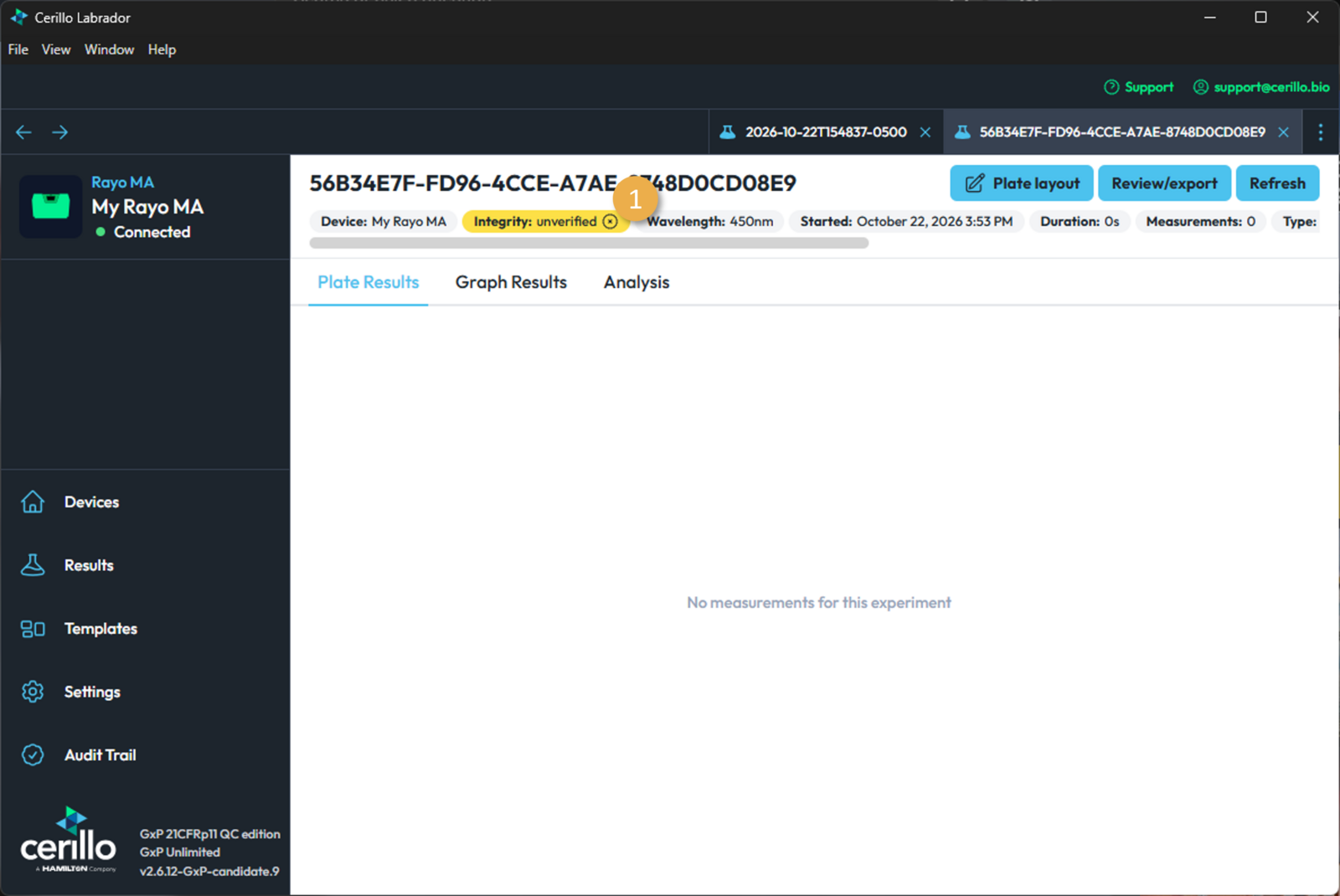 .
If you click on the integrity pill when the associated device is connected, Labrador will refresh the experimental data and verify each signature matches the expected signature for the experiment’s contents. After running through signature verification, the pill will update to one of three statuses:
If all signatures are valid and verified, the status will read

If no signatures are present because the device was not running 21CFR firmware when the experiment was started, the status will read

If signatures are found that don’t match the expected, then it will read
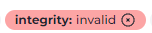 . Data transmission failures can also cause integrity issues. Clicking on the integrity pill a second or third time can help reduce false negative integrity issues by re-requesting data from the device.
21CFR Exports
All 21CFR exports require review prior to export. A user with the “reviewer” role (trained according to your organization’s SOPs) is responsible for providing their credentials to either request changes or confirm the export of a Labrador experiment. When exporting, the following panel will appear above an experiment, allowing a reviewer to look over the experiment and plate layout, as well as the plate layout edit history to determine whether the experiment is exportable.
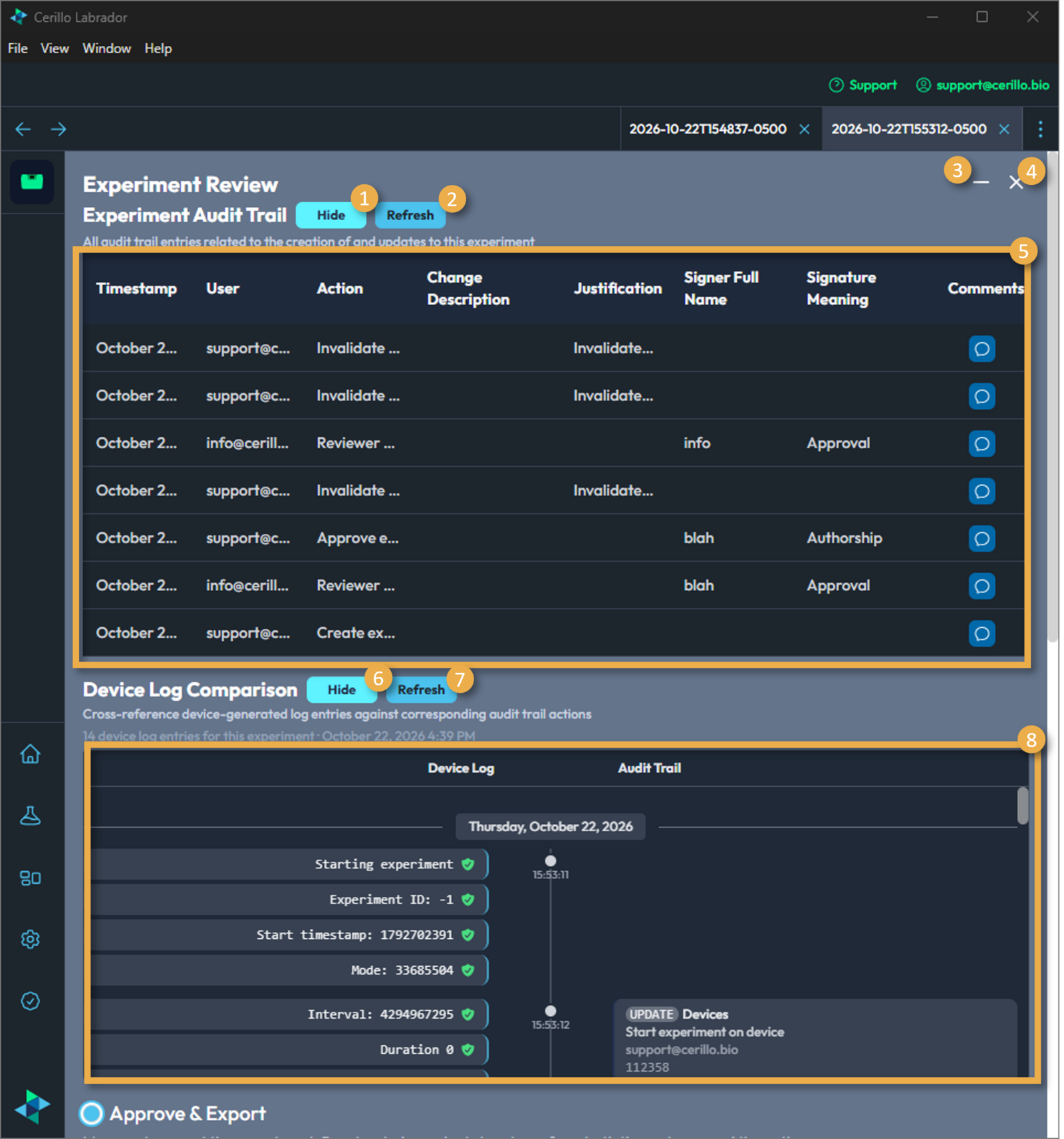
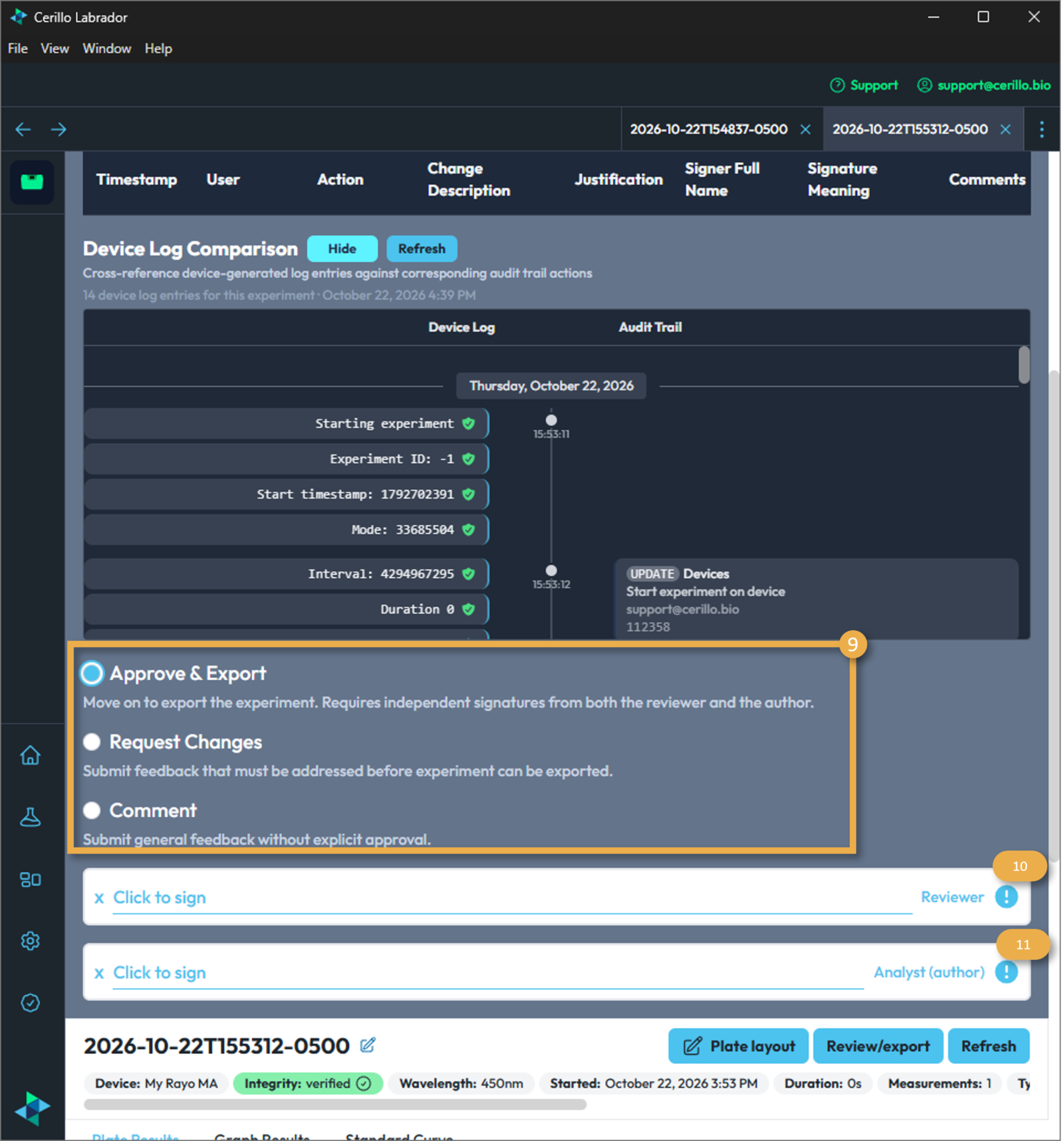
Number |
Element |
Description |
|---|---|---|
1 |
Show/Hide Audit Trail |
Click to Show or hide the experiment audit trail - actions on the experiment such as reviews, plate layout changes, analysis parameter modifications, etc. |
2 |
Refresh Audit Trail |
Refreshes audit trail data in case a change you expect is not present in the table. |
3 |
Minus |
Collapse the review panel. |
4 |
Close |
Close the review panel. Can be re-opened by clicking the Review/export button. |
5 |
Experiment Audit Trail |
Audit trail entries filtered by entries with the experiment ID matching that of this experiment. Excludes READ actions, only shows CREATE, UPDATE actions. |
6 |
Show/Hide Device Log Comparison |
Show or hide the device log timeline comparison. |
7 |
Refresh Device Log Comparison |
Refresh the timeline in case a device log or audit trail entry you expect to be in the timeline is not present. |
8 |
Device Log Comparison |
This comparison includes the entries from the device’s activity log on the left and Labrador audit trail items on the right. This timeline is filtered down to only the experiment window on the device and only audit trail items related to the experiment. Comments can be added to either device log or audit trail entries which will be included in the export. |
9 |
Review outcome select |
Select the outcome of the review. To export the experiment Approve & Export must be selected. To request changes be made (to a plate layout or to analysis parameters), the Request Changes option should be selected. To simply leave a comment with no export or change request, select Comment. Comments will appear in the audit trail but will not prompt a change request. |
10 |
Reviewer signature |
Click to sign as a reviewer attesting that you have reviewed the experiment and are ready to export the data. Once signed, the signature will display here with the ability to clear the signature if needed. |
11 |
Analyst (author) signature |
Click to sign as the author of the experiment attesting that you are the author and take responsibility for the contents of the experiment. Once signed, the signature will display here with the ability to clear the signature if needed. |
When a reviewer has selected Request Changes or Comment as the outcome of the review, a comment box will appear allowing them to input their comment or requested change.
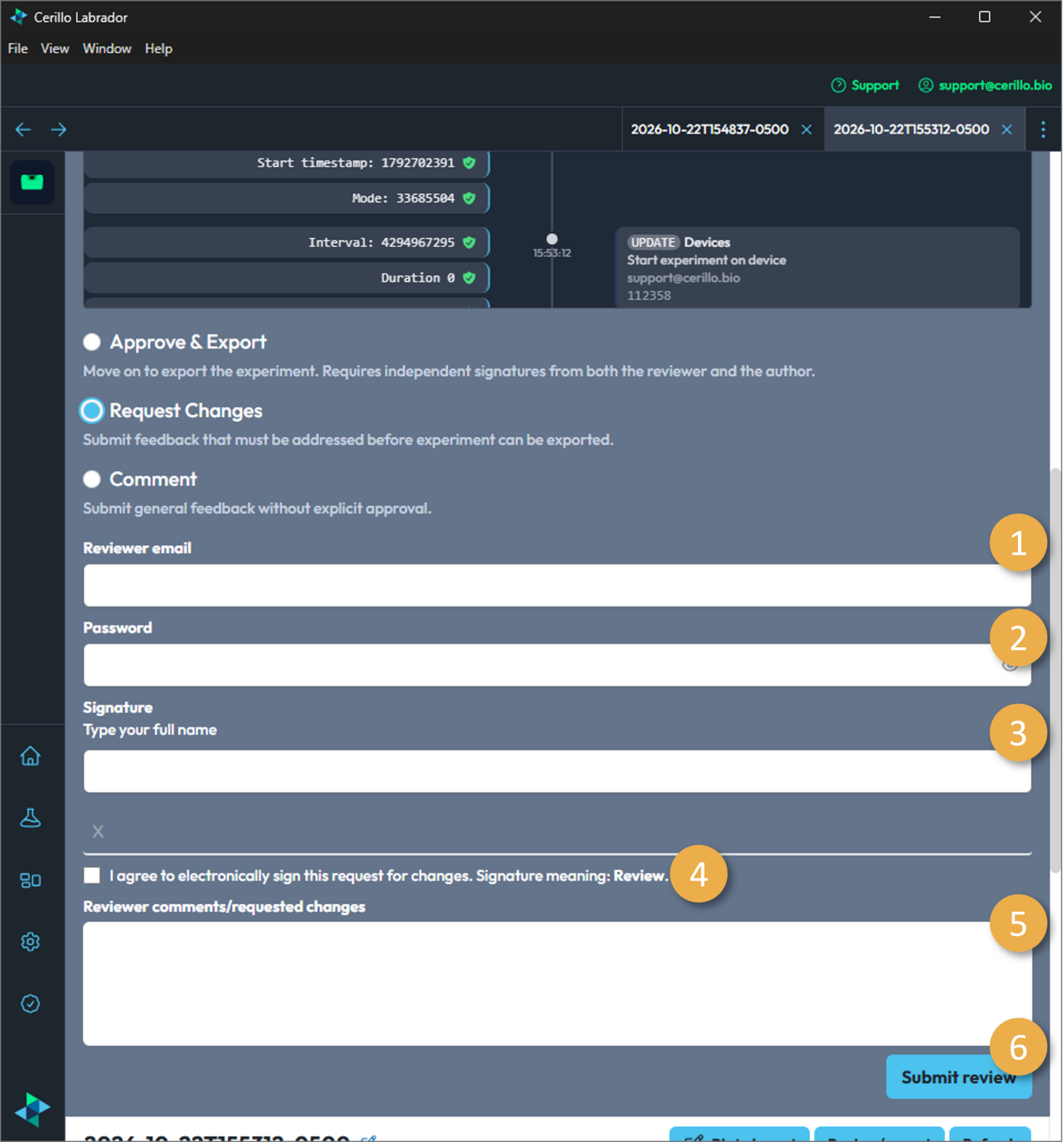
Number |
Element |
Description |
|---|---|---|
1 |
Reviewer email |
Reviewer email input field. |
2 |
Password |
Reviewer password input field. |
3 |
Signature full name input |
Enter your full name in this input. It will display in cursive below the input. |
4 |
Attestation checkbox |
Agree to attest that you are reviewing the experiment. |
5 |
Reviewer comments/requested changes |
Free text input for a reviewer to leave comments or to request changes to an experiment prior to exporting. |
5 |
Submit review |
Submit the review. |
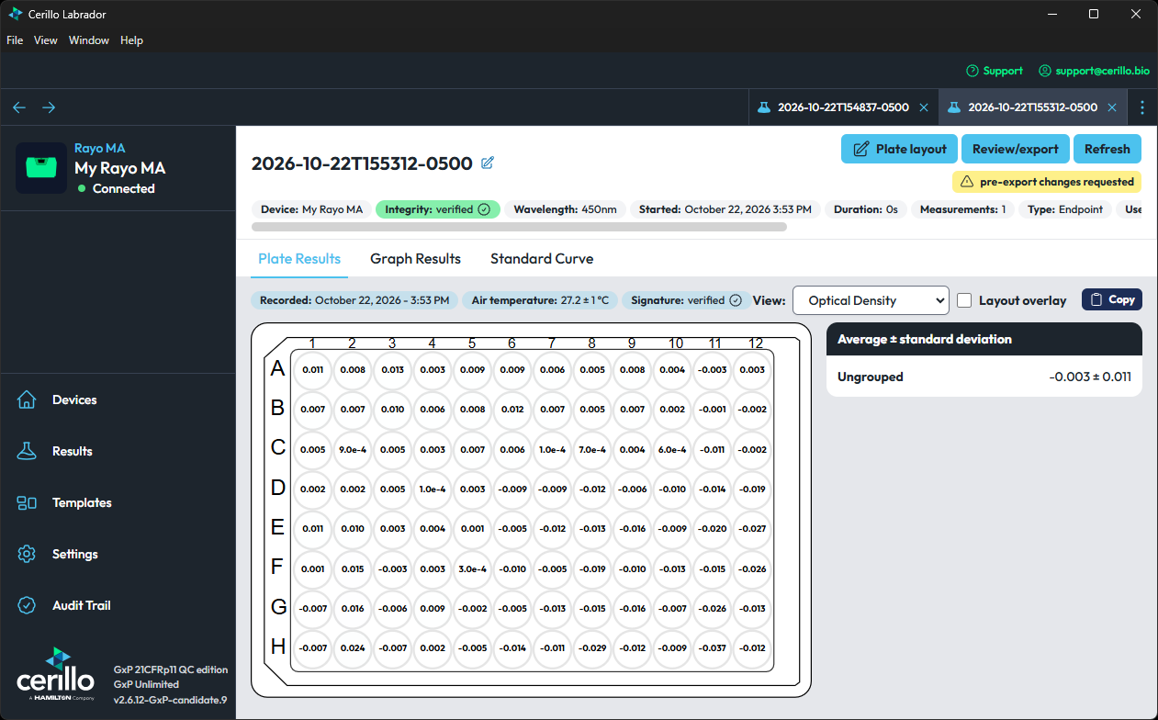
Based on your organization’s SOPs, the reviewer can choose to request changes with comment or export with a comment. If changes are requested, the following will display in the experiment header, indicating an analyst must correct something in the experiment before exporting. Clicking on the warning will display the requested change comment.
After a reviewer has chosen to confirm the export, the following dialog will appear with some export options.
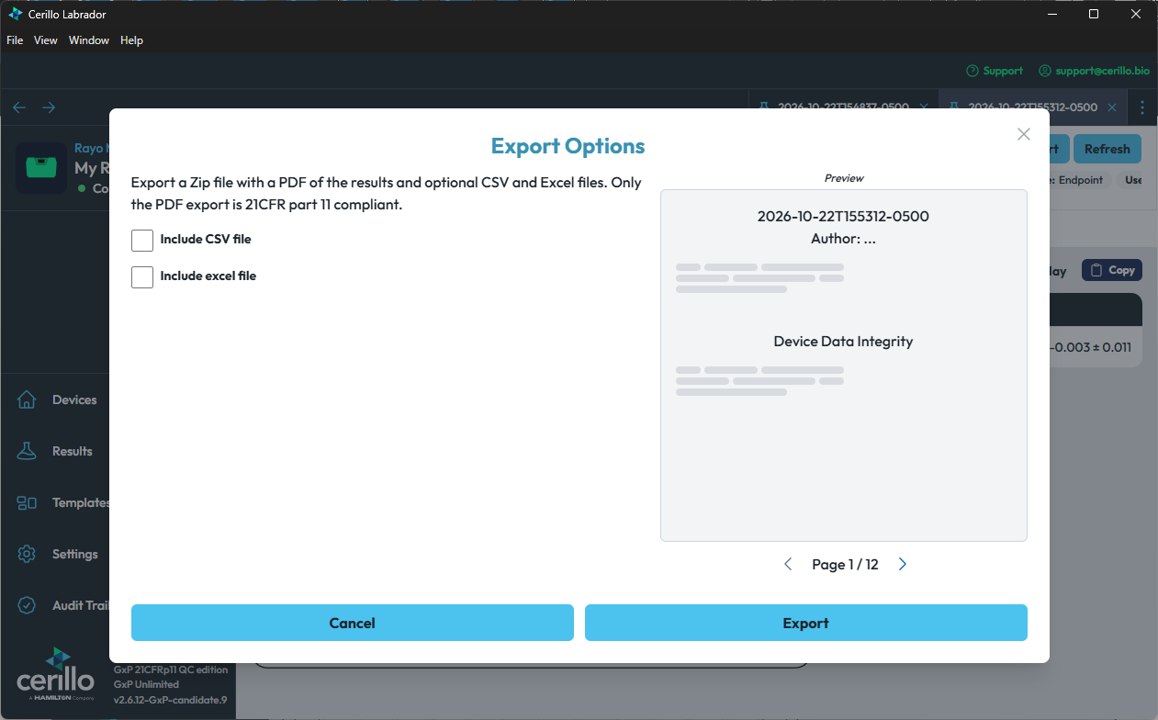
In 21CFR-compliant Labrador, all exports will be a .zip file with a .pdf and .plate plate layout file included. The PDF record includes data visualizations, plate layout details, experiment metadata, signature validations, endpoint summary (if applicable), kinetic analysis graph and table (if applicable), as well as edit history for the plate layout and reviewer comments. The PDF is saved with restricted editing permissions - printing and copying remain allowed, but editing its contents requires an owner password Cerillo does not disclose to end users - to make casual post-export tampering more difficult; see §11.70 for details.
Additionally, .csv and .xlsx (Microsoft Excel) files may also be included in the .zip archive if those corresponding checkboxes are selected during export. If additional processing is required outside of what Labrador provides, the .csv and .xlsx exports offer that ability. However, .csv and .xlsx files are more easily modified post-export compared to the .pdf; it is your organization’s responsibility to ensure responsible data use and storage once it exits Labrador via appropriate SOPs.
Export Integrity Verification
Every 21CFR export .zip also includes a signature.json file alongside the PDF, .plate, and any .csv/.xlsx files. This is a separate, second layer of tamper-evidence from the device-level Integrity / Signature Validation described above: device signatures verify that a measurement was recorded by a genuine Cerillo device and not altered during collection, while signature.json verifies that the exported .zip itself - the record that actually leaves Labrador - has not been altered since it was exported.
signature.json records a SHA-256 hash of every file in the export, signed with HMAC-SHA256 using a key shared by every installation of a given Labrador build. Editing any file in the export after it’s produced - the PDF, the plate layout, or the CSV/Excel data - will cause verification of that file to fail.
To verify an export’s integrity:
From the File menu, select Verify Export Integrity… (see Common UI Elements). This requires the
read_exportpermission - see 21CFR Part 11 Roles - a user without it will see a permission-required message instead of a file picker.Select the exported
.zipfile when prompted.Labrador reports one of the following results:
Verified - every file in the export matches its recorded signature. No tampering detected.
Tampered - one or more files do not match their recorded signature; Labrador names the specific file(s) that changed when it’s able to determine them.
Key unavailable - this installation does not have the signing key needed to verify against. This should not occur on a GxP Labrador installation.
Signature missing - no
signature.jsonwas found in the selected.zip(it may predate this feature, or is not a 21CFR export).
Each verification attempt - including its result - is recorded in the Audit Trail.
Because the signing key is shared by every installation of a given Labrador build rather than backed by a public/private keypair, this mechanism is designed to detect ordinary tampering (for example, editing the PDF or CSV in an external application after export) rather than to resist a sophisticated, deliberate forgery attempt by someone with direct access to the Labrador application files. Define in your SOP what action to take (e.g. reject, investigate, open a deviation) if verification returns anything other than verified.
Immediately after a successful 21CFR export, Labrador’s export confirmation also reminds you that the export can be verified this way, as a pointer back to this feature.
Audit Trail
In addition to the experiment and plate layout history exported in an experiment export, the full audit trail can be viewed from the Audit Trail page, which is the primary tool for satisfying §11.10(e)’s audit trail requirement. The audit trail can be filtered and exported if necessary.
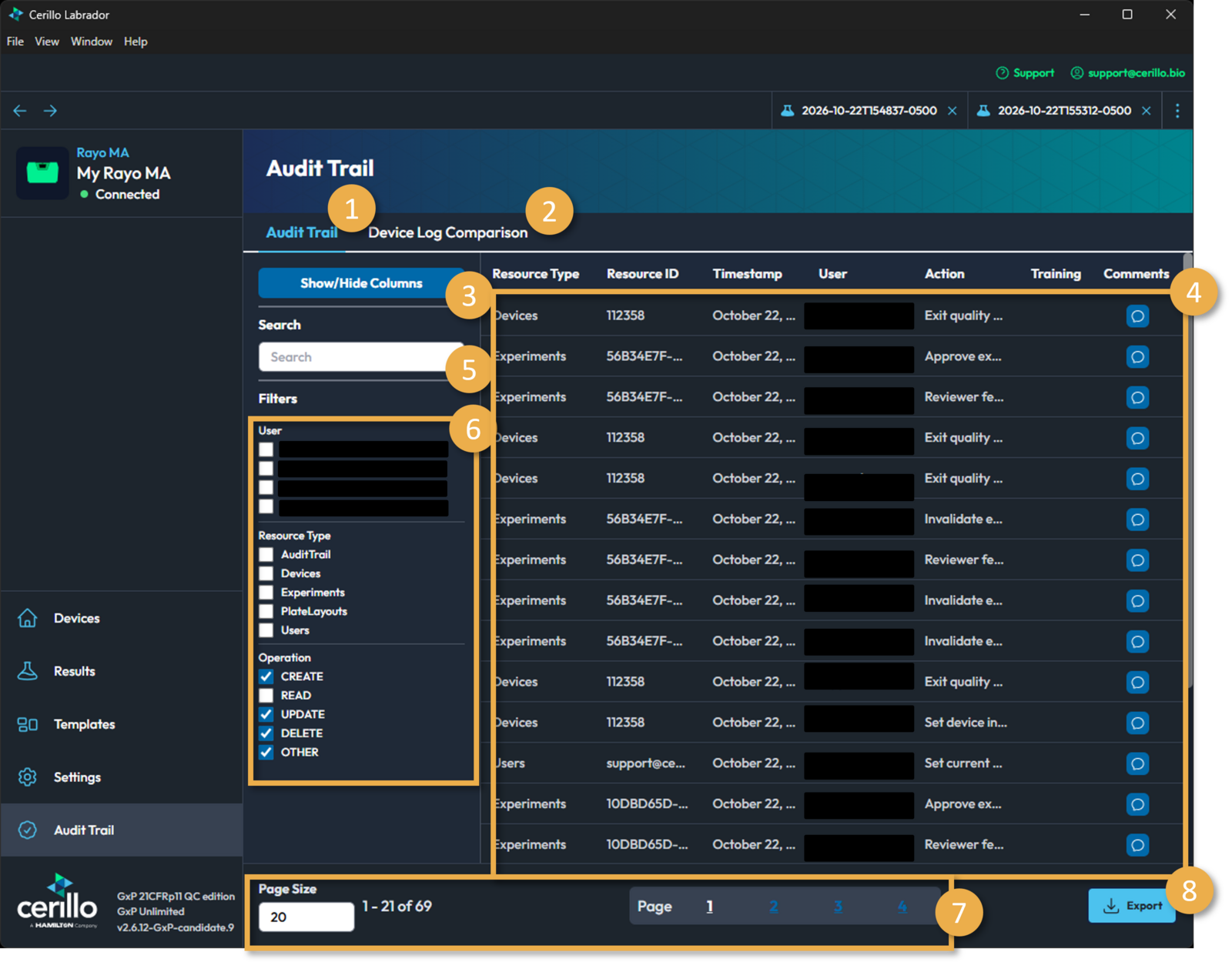
Number |
Element |
Description |
|---|---|---|
1 |
Audit Trail Tab |
Click to navigate to the full Labrador audit trail. |
2 |
Device Log Comparison |
Click to navigate to the device and Labrador log comparison timeline |
3 |
Show/Hide Columns |
Show or hide certain columns in the audit trail table. See possible columns below for options. |
4 |
Audit Trail Table |
Displays audit trail entries based on the search and filter parameters. Beyond the columns shown by default, the Operation, Justification, and Change Description columns (enabled via Show/Hide Columns) capture additional detail useful for a complete who/what/when/why record. |
5 |
Search Bar |
Enter a string to search for within the audit trail. |
6 |
Filters |
Filter the audit trail by User, Resource Type and Operation. If none is selected for a filter section, then no filter will be applied for that property and all entries will be shown. |
7 |
Page controls |
Select Page Size to display a certain number of entries in the audit trail table. Select between pages with the numbered page select. |
8 |
Export |
Export the audit trail table as a PDF. |
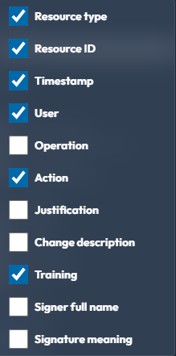
Possible columns
Device Log Comparison
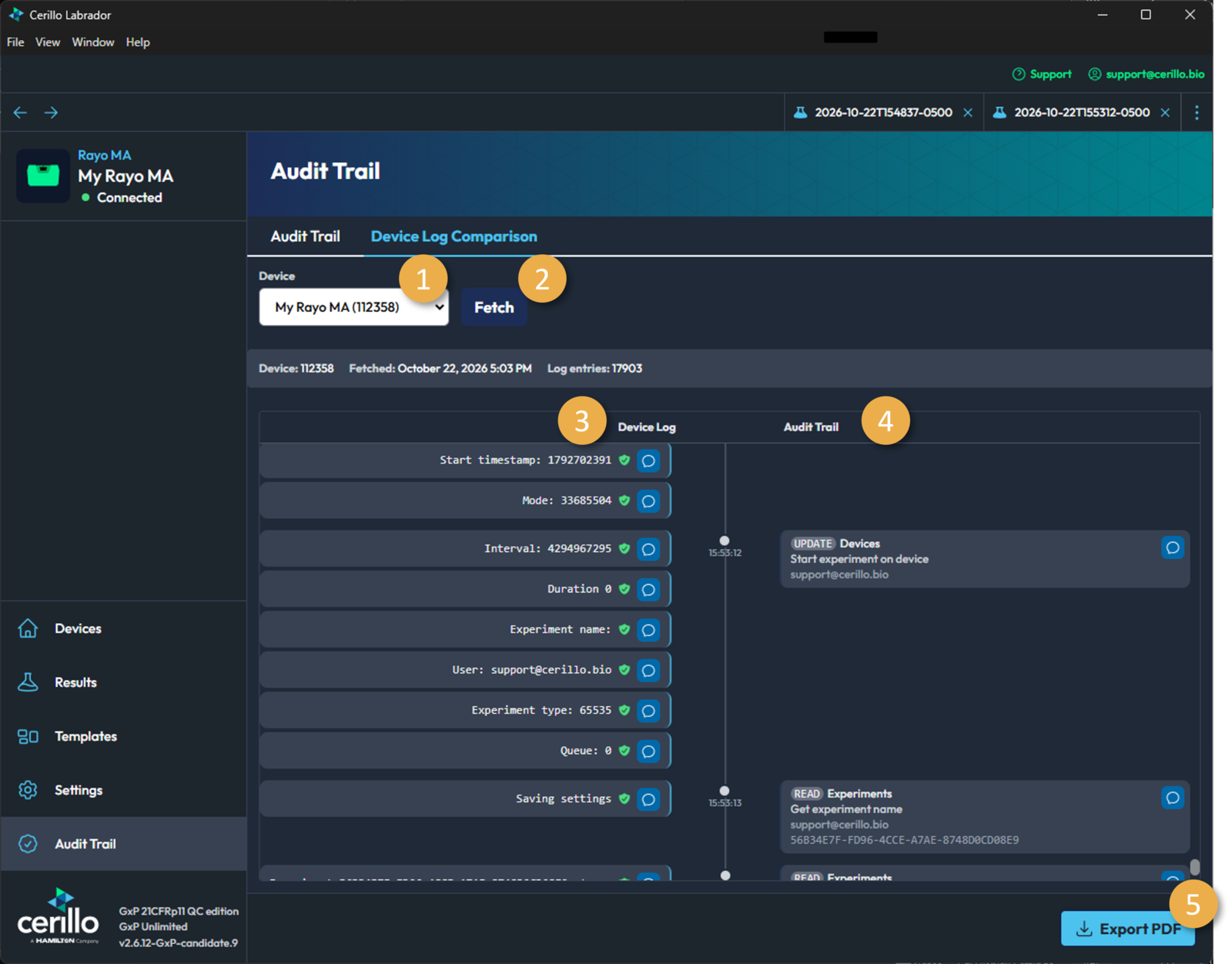
In certain instances, it may be required to observe the device log - parsed from the ACTIVITY.LOG file on the device’s SD card - and the audit trail. Administrators can do so in the Device Log Comparison view of the Audit Trail page. This supplements the cryptographic signature validation that is your primary evidence for §11.10(h)’s requirement to verify the source of raw data: it lets you confirm, entry by entry, that what Labrador recorded in the audit trail matches what the device itself logged, which is useful for investigating a specific discrepancy or demonstrating provenance during an inspection. The comparison can be annotated through comments and can be exported as a .pdf if required by your SOPs.
Number |
Element |
Description |
|---|---|---|
1 |
Device Select |
Select a device from connected device in order to compare the device log to the audit trail (filtered by operations on or to the device). |
2 |
Fetch |
Refresh the device log comparison - refreshes both the activity log and the audit trail. |
3 |
Device Log Entries |
Includes the raw text from the device’s ACTIVITY.LOG. The talk bubble button buttons allows a user to add a comment to the device log entry. Comments will be included in the PDF export of the device log comparison. |
4 |
Audit Trail Entries |
Audit trail entry with timestamp to the left. Includes operation, resource type, action, user and resource ID. The talk bubble button buttons allows a user to add a comment to the audit trail entry. Comments will be included in the PDF export of the device log comparison. |
5 |
Export PDF |
Export the device log comparison as a PDF table. |
On-Device Buttons & Display Unlock
Starting experiments from Labrador or queueing experiments is not always practical - for example, if you need to run several experiments back-to-back using only the on-device buttons. On a device running 21CFR firmware, the buttons and display are disabled by default so that button-driven data generation can’t happen without being attributed to a user. To enable them, click Unlock on-device buttons & display on the device page and enter your credentials to start a user session on the device. Once unlocked, every button press is attributed to you, and the session expires automatically after 5 minutes of inactivity.
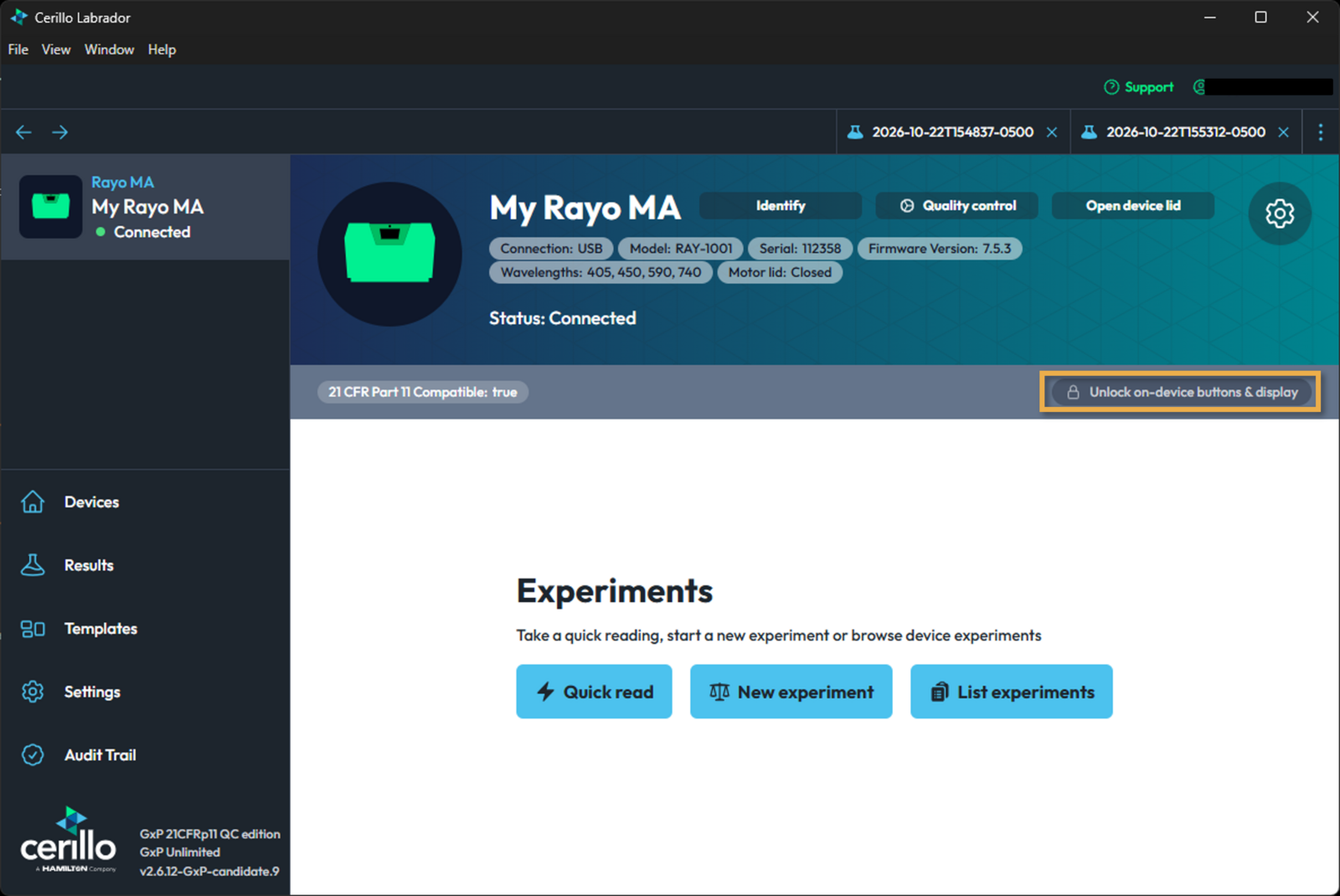
An active user session persists across power cycles, so you can move the device to an incubator or chamber and still use its buttons and menus. End the session early from Labrador, or let it expire on its own, to disable the buttons again.
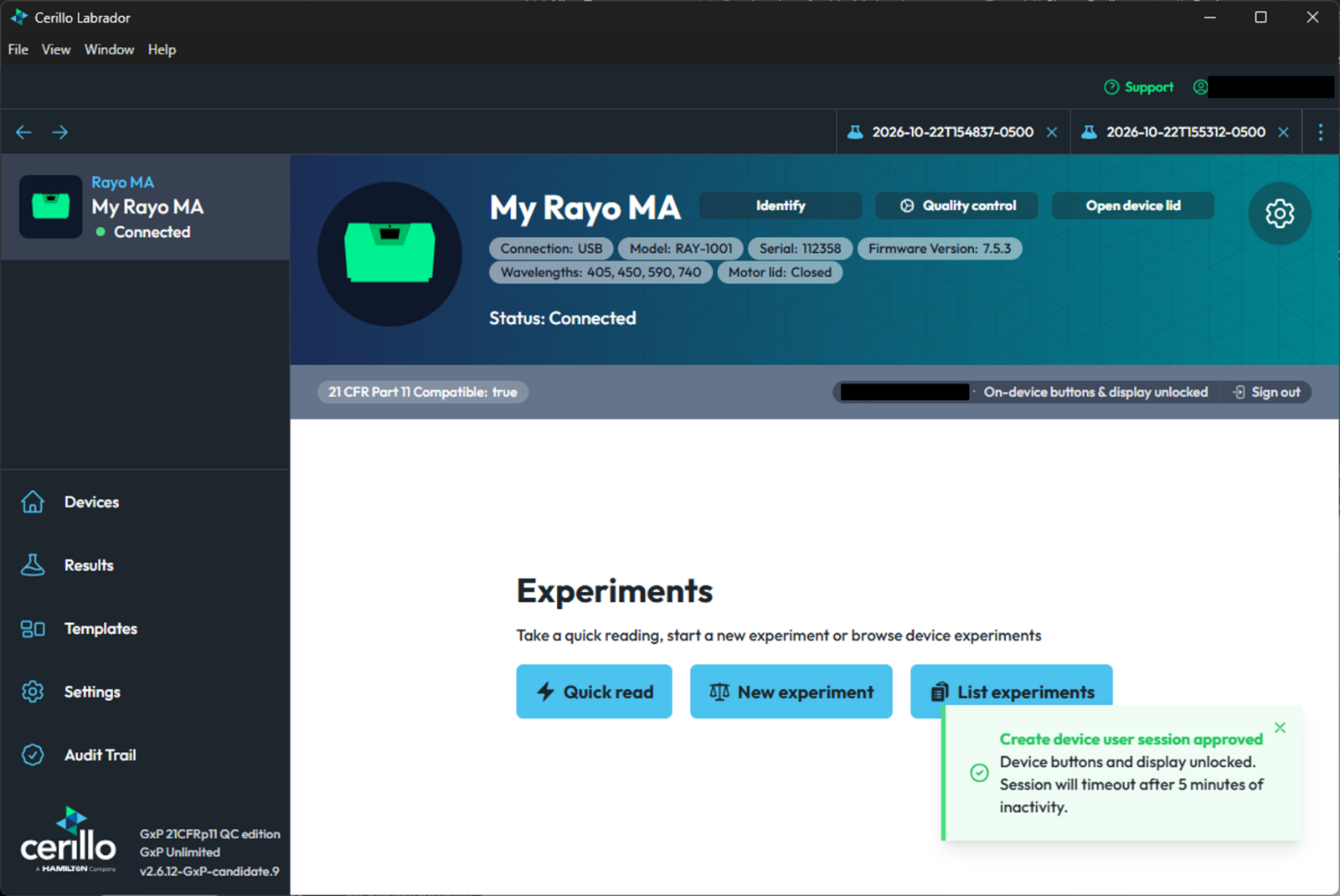
Warning
Unlocking buttons is supported, but using Labrador directly or queueing experiments is recommended instead in a 21CFR Part 11 environment. Experiments started with a button press have no plate layout associated with them, so one must be added to the experiment after the fact before it can be reviewed and exported - see §11.10(f) for how this affects your documented workflow.